- What do we call a call flow?
- How does a call flow work?
- How to design your first call flow
- Most common mistakes to avoid when creating a call flow
- Tips for creating an appropriate call flow
- The advantages of building a good call routing
To offer a smooth and professional phone experience, it is important to establish a well-structured call flow that not only allows calls to be routed correctly, but also helps reduce waiting times and avoid operational errors.
Today, we show how to create a correct call flow in Megacall and avoid the most common mistakes to make the most of the free virtual switchboard.
What do we call a call flow?
We can say that a call flow is a sequence of steps that an incoming or outgoing call follows from the moment it starts until it ends. In other words, it defines what happens with the call, in what order, and under what conditions.
To provide some context, in Megacall the call flow is built from different configurable elements, such as IVR menus, call forwarding, queues, schedules, or voicemail, which we will discuss later. Each of these components has a specific function within the path of a call, allowing the system's behavior to be adapted to the business’s needs.
A well-designed call flow takes into account different scenarios: calls within and outside of business hours, demand peaks, routing by department… The goal is to ensure that each call reaches the correct destination as quickly and efficiently as possible, without causing user frustration.
How does a call flow work?
Each call enters the system through an initial point and, from there, progresses through different steps depending on the established configuration and the actions of the caller.
At the moment of the call, the system evaluates the first conditions of the call flow, for example: the initial greeting, a welcome menu with different options, or directing the call straight to an agent or call queue.
As the call progresses, the flow changes actions. For example, if the user selects an option from the IVR menu, the system redirects them to the corresponding department. If no agents are available at that moment, the call may be placed in a queue, play a message, or be sent to voicemail.
Thus, we see that a call flow can accommodate different alternative scenarios:
- Call forwarding in case of overload.
- Messages outside of business hours.
- Voicemail if no one answers.
In conclusion, a call flow works like an automated decision system that guides each call, ensuring organized management aligned with the business’s operations.
How to design your first call flow
First, to build a call flow, you need to be clear on how you want to guide the conversation. This means you should:
- Identify the different departments or agents in the business, which can be included in the IVR menu.
- Decide where each call should be directed. For example, new customers enter the IVR menu with its different options, while current customers can go directly to the corresponding agent.
- Consider business hours and after-hours availability to set up a voice system for each situation.
In Megacall, creating a call flow is not difficult because it has an intuitive platform. It is built directly from Megacall’s free virtual PBX, so the first thing to know is:
- If you are already registered on the platform, you can skip this step. Otherwise, choose your virtual number to make and receive calls. To do this, go to “Services - Order a virtual number” This step can also be done after setting up the switchboard.
- The system will guide you through a basic PBX setup. This way, you can create a simple call flow directly to extensions.
- To receive calls, each employee can use the Megacall app available for iOS, Android, and Windows devices.
It’s also worth mentioning that up to 20 numbers from another provider can be connected via “My PBX - External Line.”
With the PBX activated, you can start configuring the different scenarios of the call flow.
Add extensions to the PBX.
If you need more extensions, you can add them in “My PBX - Extensions” by clicking the “Add an Extension” button. Keep in mind that the number of available extensions depends on your chosen plan, and you can increase the limit by upgrading your plan or as an add-on in the same section, labeled “Extensions with Call Recording” on the right side.
Set up the welcome greeting.
From “My PBX - Incoming calls and IVR” select “Configure” in the IVR menu to set a voice greeting. You have the option to upload an audio file up to 5 MB or use the free AI-powered text-to-speech tool under “Upload or Insert Text” - “Inserted,” where you can write the greeting, choose the language and voice, and this will be played as the initial greeting.
“Without pushing” menu element.
This option is activated when the user does not select any option from the menu within the set time. You can configure this option as follows:
- Call: choose one or more extensions to which the call will be directed.
- Transfer to voice menu: redirects the call to this menu or another menu. To do this, select the “Call” field and then choose the destination menu under “Go to.”
Set up working hours.
In the “Working Hours” option, you can define customer service hours. It is also possible to define behavior outside of working hours, such as a voicemail, either by uploading an audio file or using text-to-speech.
Call menu options.
Here, you can add the different options (departments) that connect to the appropriate agent when a customer calls.
After the “without pushing” scenario, click + Scenario. Enter the title of the area or department, for example, Sales, and start configuring how you want the call to proceed. For example, which number is activated when pressed, choose the extension the call is directed to (or menu). Finally, in calling settings, you can choose the call distribution.
Hold music.
From the same “Incoming Calls and IVR Menu” section, in the lower right corner, check the “Hold Music instead of beeps” box and you can choose to upload an audio file or use a text-to-speech message.
It is also possible to set hold music for individual scenarios by selecting the specific scenario, going to “Calling Settings,” and choosing the hold music.
No answer option.
If no one answers, from the selected scenario, go again to “Calling Settings” and in the “If No Answer” field, choose what should happen. For example, forward the call to another extension.
Voicemail and call forwarding.
From the PBX, it is possible to configure a voicemail or call forwarding to an external number for any of the extensions under “My PBX - Extensions” To do this, activate the call forwarding and voicemail option and choose the forwarding settings.
Activate a call queue
To prevent the call from being disconnected or sent to voicemail if no one answers, go back to “My PBX - Incoming Calls and Voice Menu” Select the scenario where you want to set up the call queue in the menu, and go to “Calling Settings.” In the “If No Answer” field, select “Repeat calling” Save the changes, close the window, and then activate the “Cyclic Redial” checkbox in the options at the lower right corner.
Add additional menus
In addition to the main menu, from the Megacall virtual PBX, you can also add additional menus using the “+” icon. Additional menus can be used to provide customer service in different languages, add another department with a different time zone, or function as an independent PBX.
Most common mistakes to avoid when creating a call flow
It is important to avoid certain mistakes that can affect the user experience and service efficiency. For example:
- Not testing the call flow before activating it. It is best to run preliminary tests to ensure everything works as intended and to prevent future issues.
- Not configuring after-hours scenarios. If the call flow does not account for calls outside business hours, the user may not receive a response. It is always recommended to provide some form of attention.
- Menus that are too long. This can confuse callers. Recommendation: keep menus short and direct.
- Not setting the delay seconds before the “Without pushing” scenario. If the delay is too long, there is a risk that the caller will get frustrated and hang up.
- Not setting a “siesta” or break period in the working hours configuration.
Tips for creating an appropriate call flow
Some tips for successfully creating your first call flow in the virtual switchboard are:
- Define the objective of the conversation flow from the beginning. This way, it will be clear what configurations are needed to achieve the desired call flow.
- Keep menus short and clear. Ideally, 3 or 4 options with concise messages. The easier it is for the user, the faster they reach their destination.
- Start by creating something simple, and add scenarios or menus later as needed.
- Don’t forget to include alternative routes for cases like agent overload or unanswered calls, so the call always has a path.
- Use clear messages in the recordings to convey useful information, with the right tone and aligned with the company’s image.
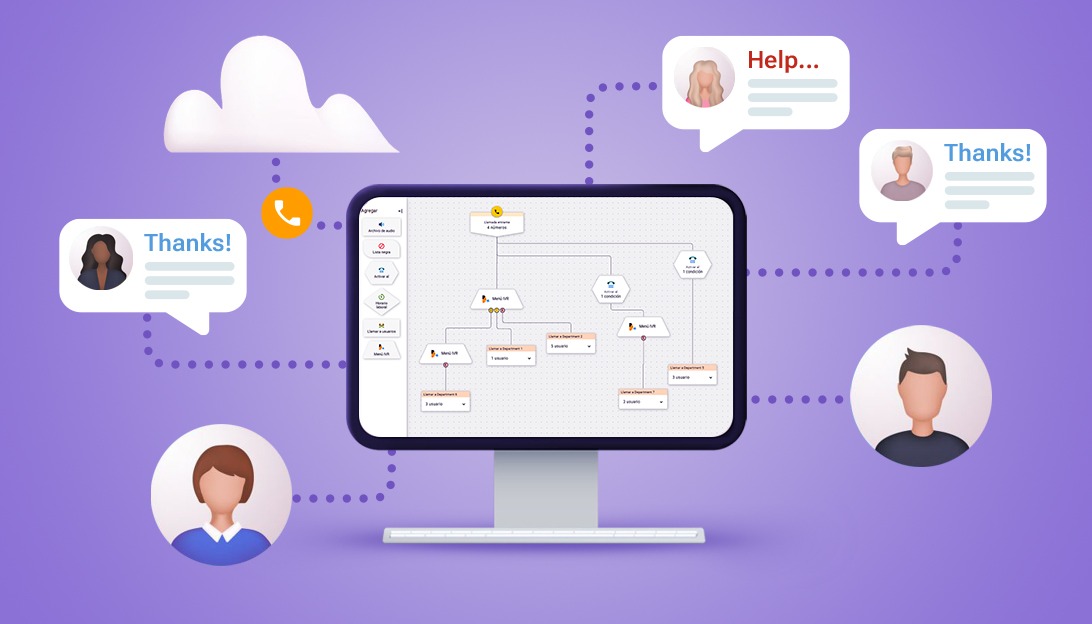
- In Megacall, you can use the visual editor to see the call flow clearly and configure it directly from that interface.
The advantages of building a good call routing
A well-structured call flow allows each call to be handled in an orderly and consistent manner, avoiding unnecessary transfers and long waiting times.
- Reduces the number of missed calls. By defining alternative routes, calls always find an appropriate path to meet the request.
- Optimizes agent time. Calls reach the correct department or agent directly, improving productivity and saving time for both the user and the agent.
- Brings a more professional image for the business.
- Enables efficient service during demand peaks, thanks to queues, call forwarding, and established rules.
- Improves management outside of business hours, important to avoid losing any customers.
In short, creating a correct call flow is essential to ensure proper phone management and a positive user experience. Taking the time to plan, configure, and test the conversation flow will reduce incidents and provide professional service, and the best part is that all of this can be achieved with Megacall’s virtual PBX.